Flying car image tool
Flying Car Background Remover
A clean cutout is the start of every good composite. Remove the showroom, the street or the sky and keep the car’s edges, glass and reflections.
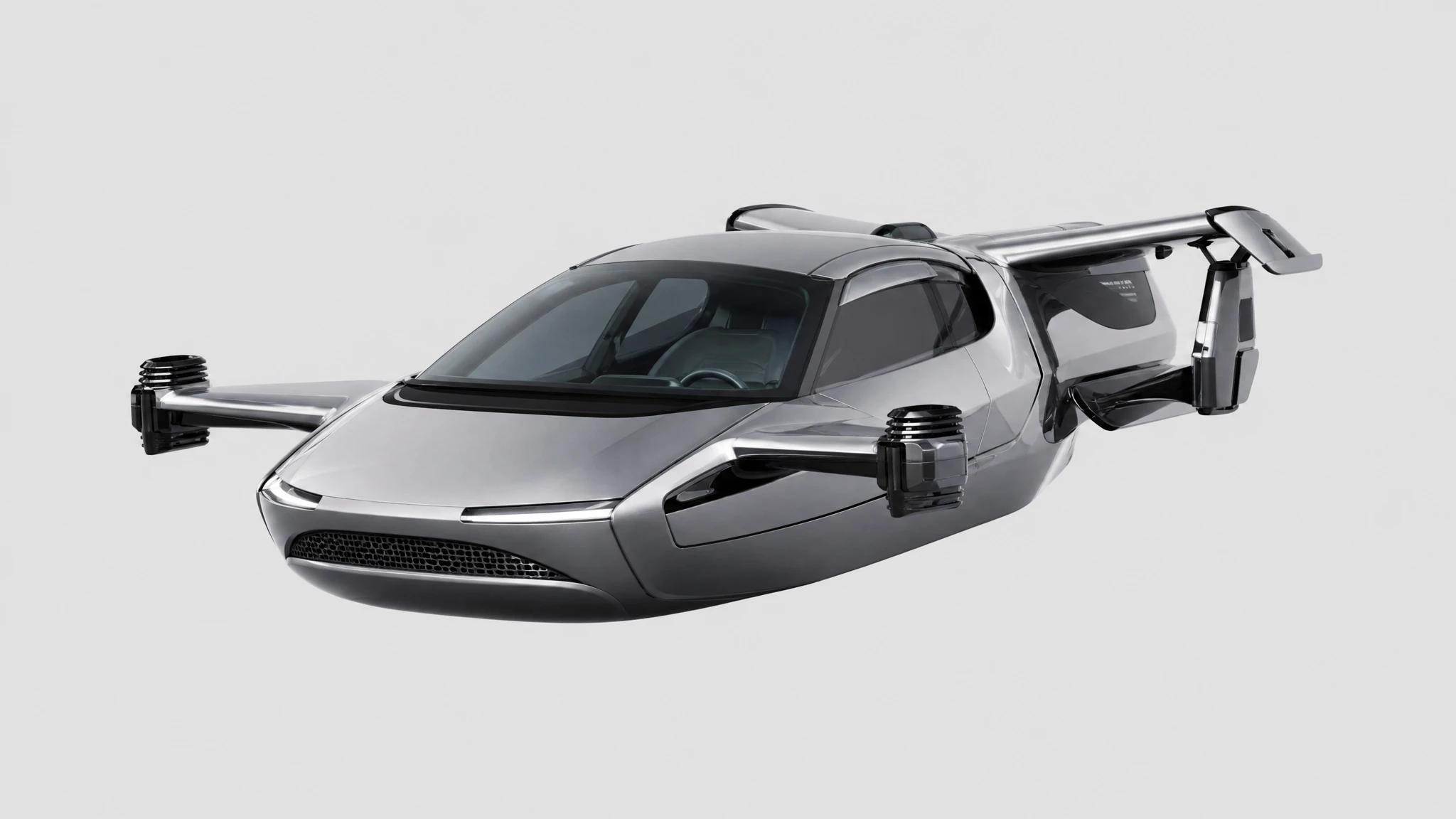
The cutout costs 2 credits and returns a transparent PNG you can drop into any editor.
Sign in to generate. Your prompt and photo are saved for this tab.
How it works
From input to a result you can publish
The guide explains the decision. The tool lets you make the result without leaving the site.
- 01
Add your photo
Use a sharp photo with the vehicle fully visible. The tool keeps the subject and changes the scene.
- 02
Choose a preset
Start from a tested direction, then edit the sentence. The price stays visible before you generate.
- 03
Download or iterate
Keep the result, generate a variation, or move it into a related tool for editing or animation.
What people use it for
Built for real publishing work
The same output has to survive a thumbnail crop, a client review and a phone screen. These are the jobs the tool is tuned for.
Creators
Thumbnails, Shorts, Reels and a repeatable visual style for a weekly upload.
Dealers & detailers
Concept visuals for a campaign, a listing hero or a showroom screen, clearly labelled as AI.
Design & film
Concept stills, storyboards and animatics before a shoot or a 3D render is commissioned.
Where a transparent cutout helps
Marketplace listings, dealer pages, thumbnails, pitch decks and composite scenes all need the same thing: the vehicle without its original background. A transparent PNG lets you place the car on a brand colour, a studio sweep or a generated city without fighting a rectangular photo.
The hard parts are mirrors, antennas, glass and shadows. Ask the tool to keep those edges and remove the ground shadow separately. If the car has a strong reflection on wet ground, decide whether the reflection belongs to the car or the scene before you cut.
Shoot for the cutout
A clean background is not required, but contrast helps. Park the car so its outline is not the same colour as the wall behind it. Avoid direct sun that blows out the roof, and keep the whole vehicle in frame with a little space around it.
If you are shooting a series, use the same angle and distance for every car. Consistent cutouts make a listing grid look intentional instead of assembled.
After the cutout
Open the transparent PNG in the photo editor to add a new background, or use the flying car image generator for a scene that would be impossible to photograph. Keep the original cutout as a master file; every new composite should start from it, not from a flattened export.
For print, run the cutout through the image upscaler after compositing. Upscaling before compositing can exaggerate edge artefacts.
Questions before you generate
Does it keep the car’s shadow?
The prompt asks for a clean cutout, so the ground shadow is usually removed. Add a new shadow in your editor if the composite needs one.
What format is the result?
A transparent PNG. That is the right format for compositing in Photoshop, Figma, Canva or a video editor.
Does it work on glass and mirrors?
It can, but reflective edges are the hardest part. Check the result at 100% and clean up any halo manually if the image is going to print.
Can I remove the background from a flying car render?
Yes. The tool works on generated images as well as photos. Use the original render, not a screenshot of it.
Results are AI-generated. Check details before publishing.
Related tools
Keep the workflow moving
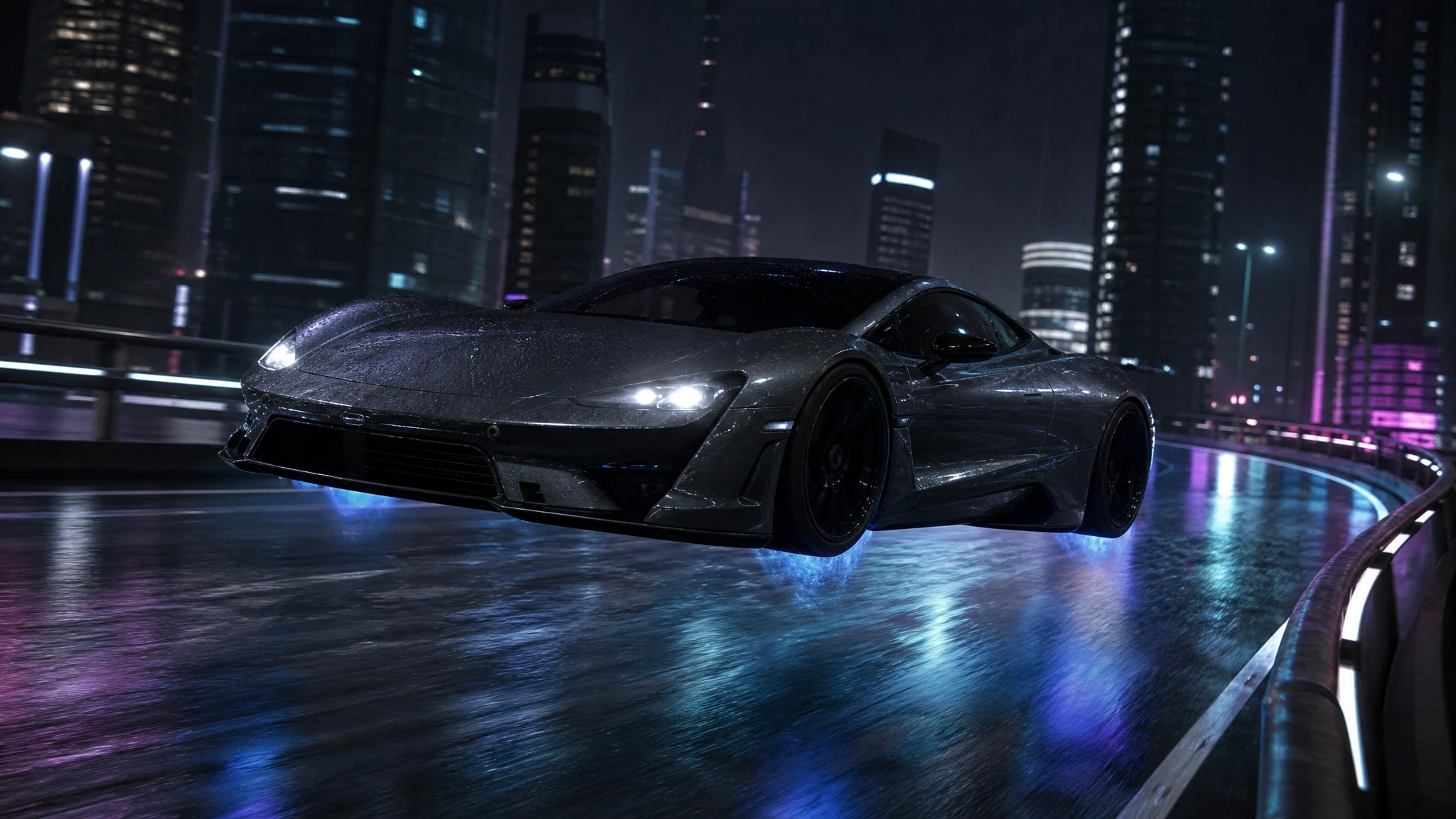 Image
ImageFlying Car Photo Editor
Upload a car photo and edit it into a flying car scene. Keep the body, colour and angle, then add landing gear, thruster glow or a new background.
 Image
ImageFlying Car Image Upscaler
Upscale a flying car image 2x for print, 4K thumbnails or showroom displays. Keep the composition and recover panel-line detail without redrawing the car.
 Image
ImageFlying Car Thumbnail Maker
Generate flying car YouTube thumbnails with a strong subject, clean negative space and no baked-in text. Download the still and add your headline.
One pack. Thirty credits. Start with one result.
The single pack costs $9.90 and the credits never expire. Use them on this tool, or on any other tool in the directory.