 Flying Car AI Video Team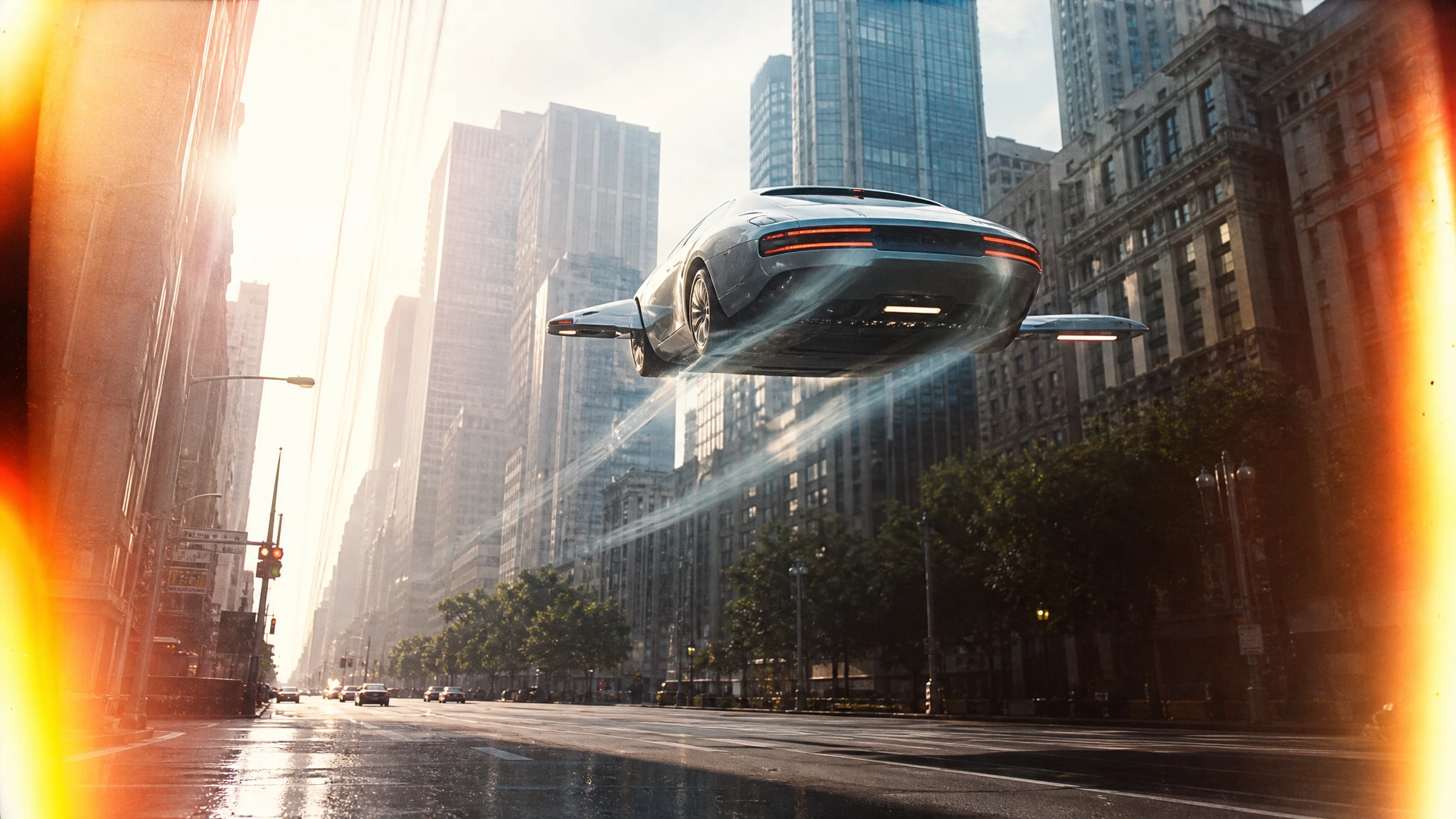
Image-to-video is the most reliable way to animate a flying car because the first frame is already decided. The model does not have to invent the vehicle, the colour or the composition. It only has to move them.
That sounds simple, and it is, but most bad results come from asking the model to do too much in one clip. This workflow keeps the car stable, the motion legible and the credit spend low.
Sign in before uploading a photo. You can prepare your prompt and settings first.
This clip: 30 credits — about 6 a month on Pro for $39.90, or 80 a year for $319.
Sign in to generate — your upload and settings stay put.
Most clips finish in a few minutes. If a render fails, its credits are returned automatically.
Step one: approve the still
Do not animate a still you are unsure about. A five-second clip costs credits, and motion makes small problems more visible. Check four things first:
- the car is fully visible, with no important detail at the edge;
- the silhouette reads at thumbnail size;
- the light direction is clear;
- there is room in the frame for the movement.
If the shot needs the car to rise, include sky above it. If the camera needs to orbit, leave space around the car. If the car needs to move forward, show enough road ahead. The model cannot reveal what was never in the frame.
Step two: choose one move
A five-second clip has room for one idea. Pick one:
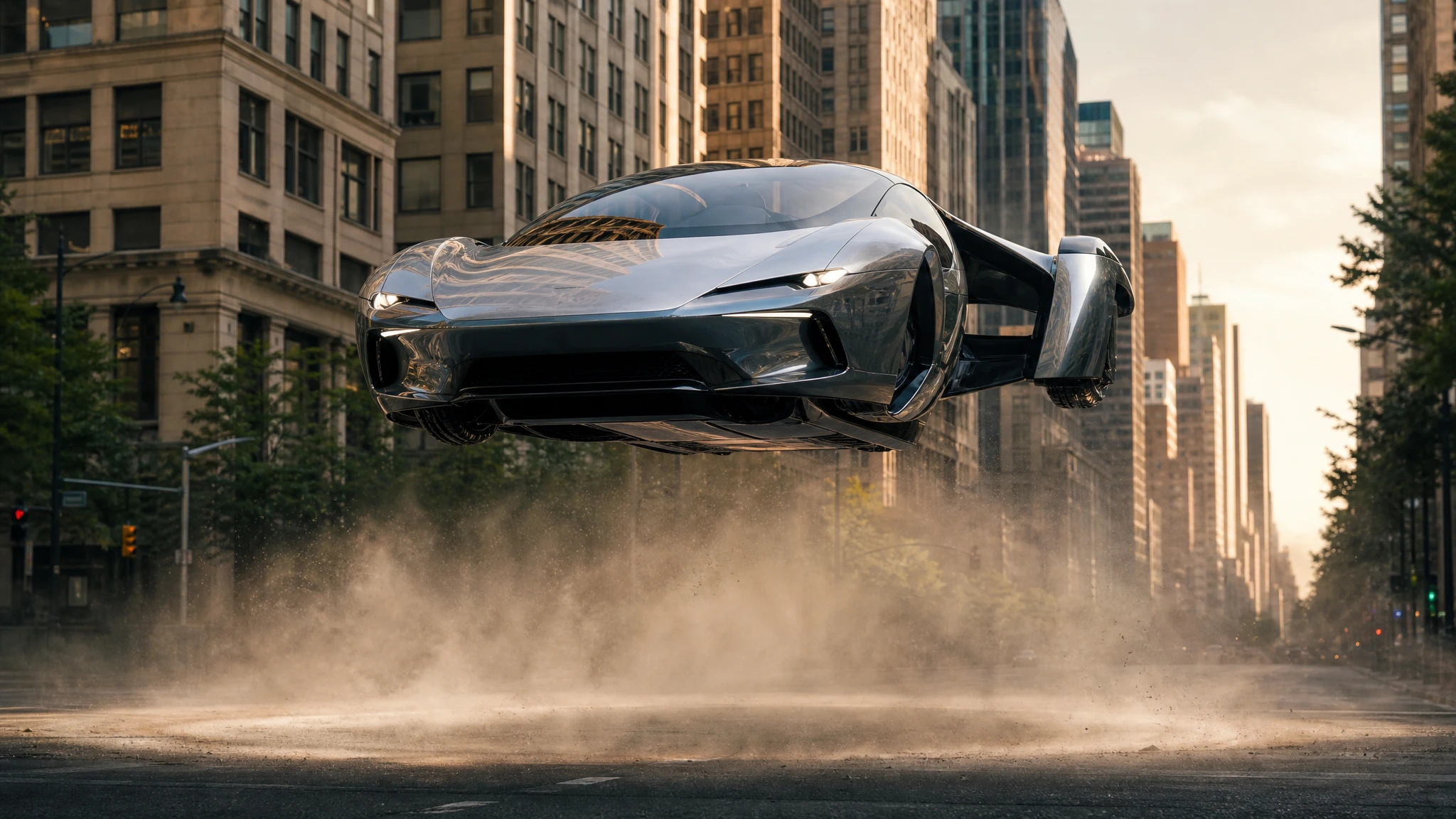
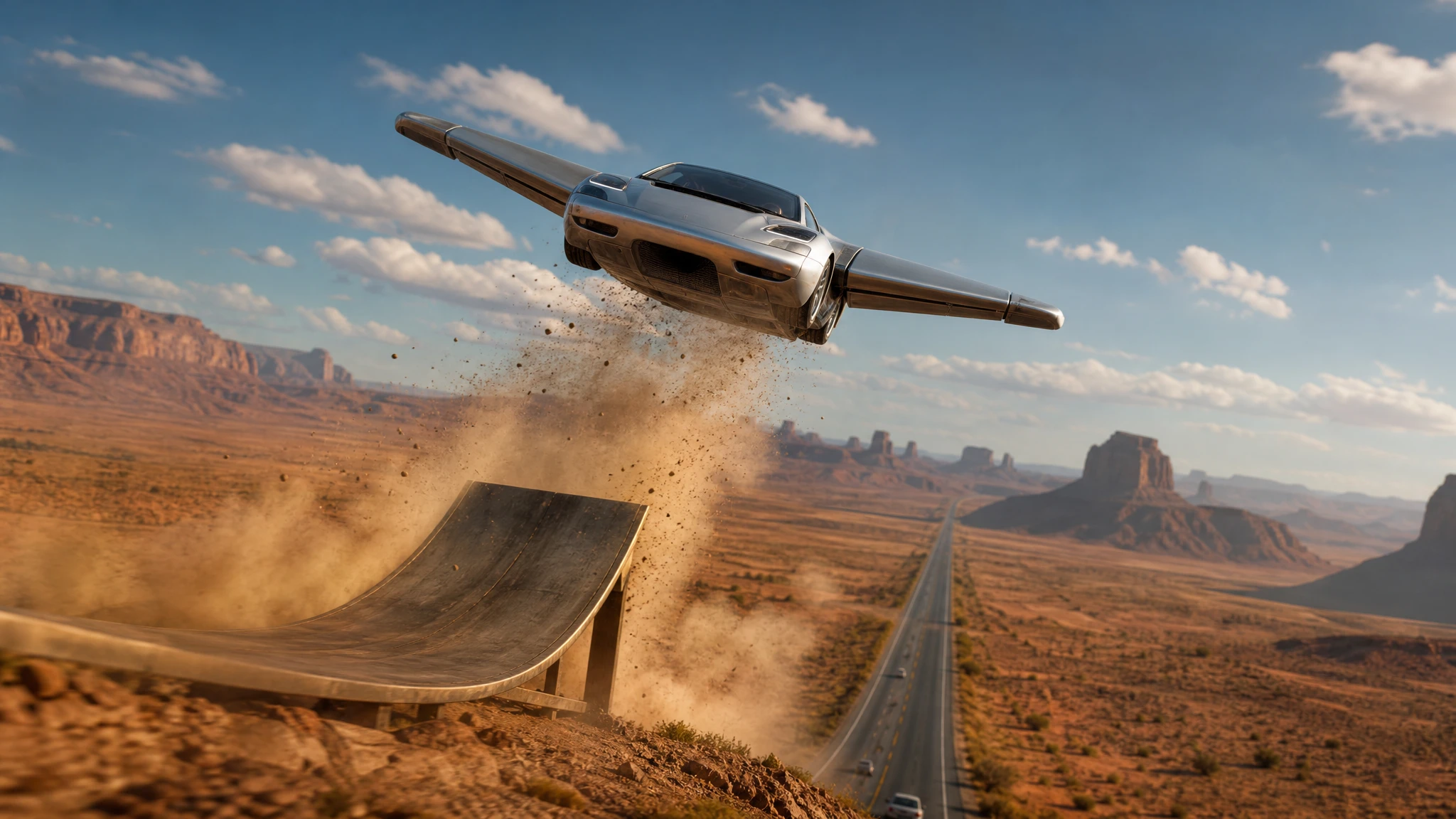
The lift. The car rises vertically, landing gear folds, dust forms below. This is the easiest move to control.
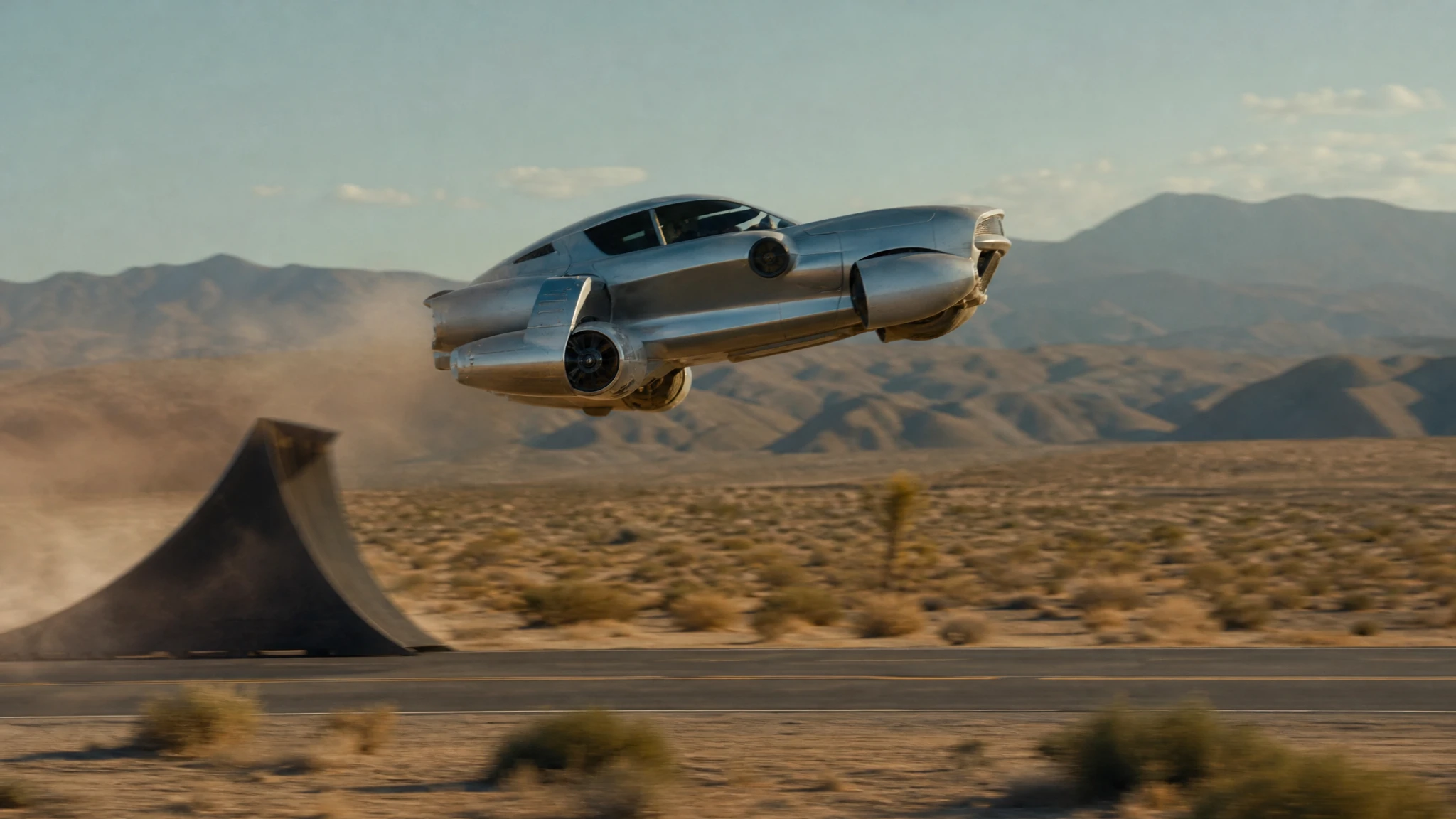
The glide. The car moves forward over a road or traffic while the camera tracks from the side. This needs a clean background and a clear direction.
The rotation. The car turns once in mid-air and settles. This is the most impressive and the most likely to drift; keep the background simple.
The push-in. The camera moves toward a hovering car while the car stays still. This is a safe way to add production value to a still.
Do not combine a lift, a rotation, a landing and an orbit in one prompt. The model will try, and the car will lose its shape. Split the sequence into separate clips and cut them together.
Step three: describe the camera and the atmosphere
A useful prompt has four parts:
Use the uploaded image as the exact first frame. Keep the car’s shape, colour and proportions identical. The car lifts vertically and the landing gear folds. The camera pushes in slowly. A soft dust ring forms below the chassis, with late-afternoon light and a gentle heat haze.
The first sentence locks the reference. The second describes the vehicle move. The third describes the camera. The fourth describes the atmosphere. That order makes the prompt easy to edit: if the camera is wrong, change only the camera sentence.
Step four: draft at five seconds
Longer clips are harder to keep coherent. Start with five seconds and the lowest resolution that lets you judge the motion. If the car holds its shape and the camera reads, generate the longer version. If it does not, change one variable and try again.
The studio shows the credit cost before you generate. A standard 12-second 720p clip costs 30 credits; a five-second draft costs less. The draft is not wasted money; it is the cheapest way to avoid a 30-credit mistake.
Step five: build a sequence
One clip is a shot, not a story. A 15-second sequence usually needs three shots:
- Establishing: a wide view of the car in the world.
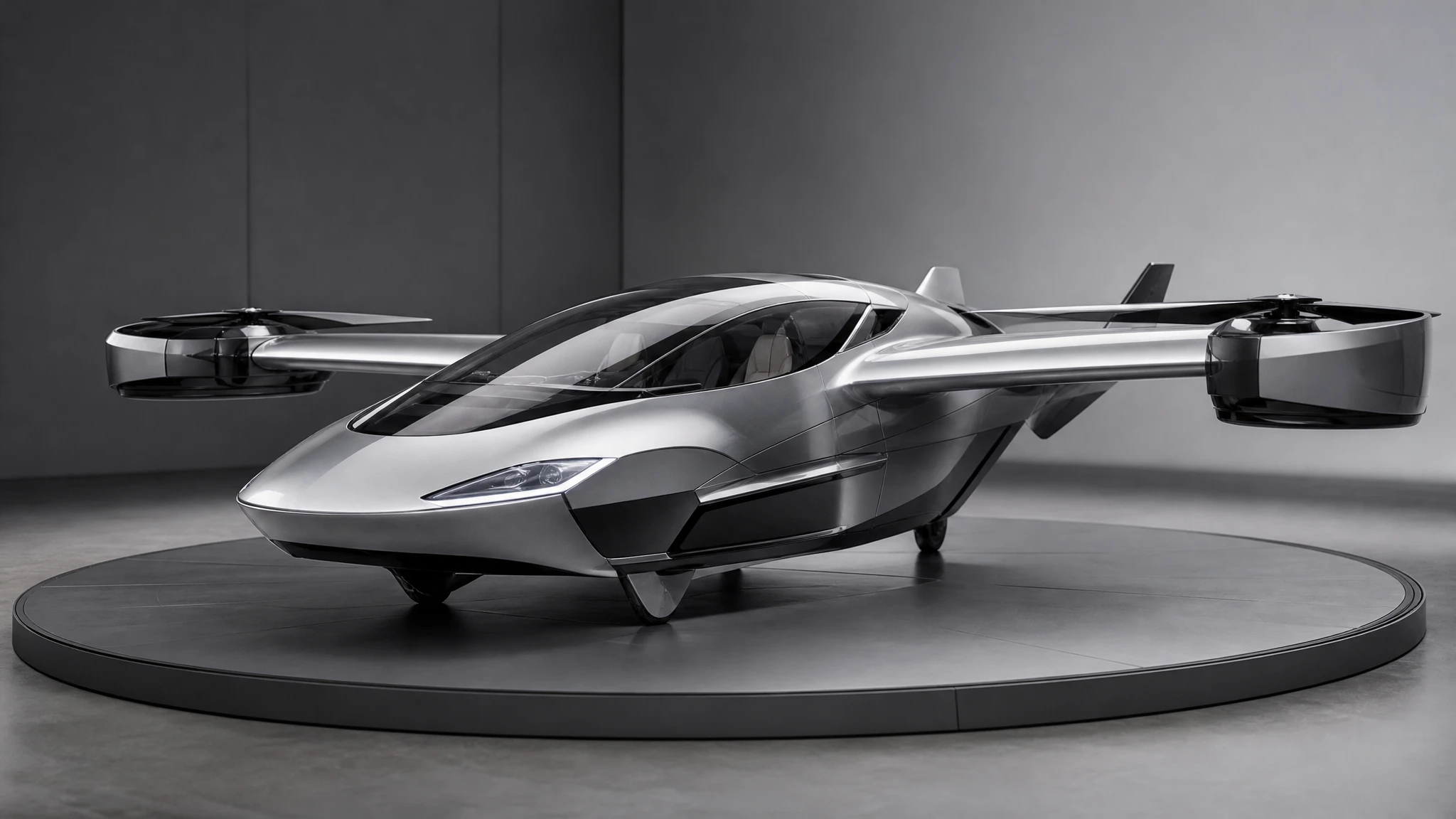
- Detail: a wheel, a canopy, a thruster or a driver.
- Hero: the impossible move.
Generate each shot from a separate still. Keep the same car description and the same palette across all three. Then cut them on the beat in your editor.
This is also how you get more from a single approval. A client who likes the hero shot may also want a vertical cut, a square cut and a thumbnail. Each can be generated from the same source frame with a different camera instruction.
What to do when the car drifts
Drift is normal. The most common causes are:
- a source image with the car too small;
- motion blur in the source;
- a prompt that asks for several moves;
- a background with repeating patterns that confuse the tracker;
- a clip that is too long for the amount of action.
Fix the source first. A larger, sharper car with a simple background will outperform a clever prompt. Then shorten the clip and reduce the action to one move.
Sound and finishing
The model returns silent video. Add music, sound design and titles in your editor. Keep a licensed track and a written record of the license. If the clip is used in a paid ad, check the platform’s synthetic-media disclosure rules.
For a polished result, add a subtle camera shake, a light grade and a title card. Do not add fake film grain to hide a bad generation; it usually makes the artefacts more visible.
A credit-safe checklist
- Approve the still before animating.
- Use one move per clip.
- Draft at five seconds.
- Keep the background simple.
- Split complex sequences into separate shots.
- Download each successful clip immediately.
- Label the final result as AI-generated.
Frequently asked questions
Can I animate a photo of my own car? Yes. Upload the photo, describe one move and keep the car description explicit. The photo editor can add the hover details before you animate.
Why does the car change shape? The model is balancing the reference against the requested motion. A sharper source, a shorter clip and a simpler move all help.
Can I control the camera? Yes. Say “slow push-in”, “side tracking shot”, “low angle” or “overhead drone”. One clear instruction is better than several.
How long should the clip be? Five seconds for a test, twelve for a finished social clip. Longer sequences should be separate shots.
What happens if the render fails? The reserved credits are returned. Retry with a simpler prompt or a shorter duration.
Ready to try it? Open the flying car image to video tool, upload an approved still and start with a five-second draft.