 Flying Car AI Video Team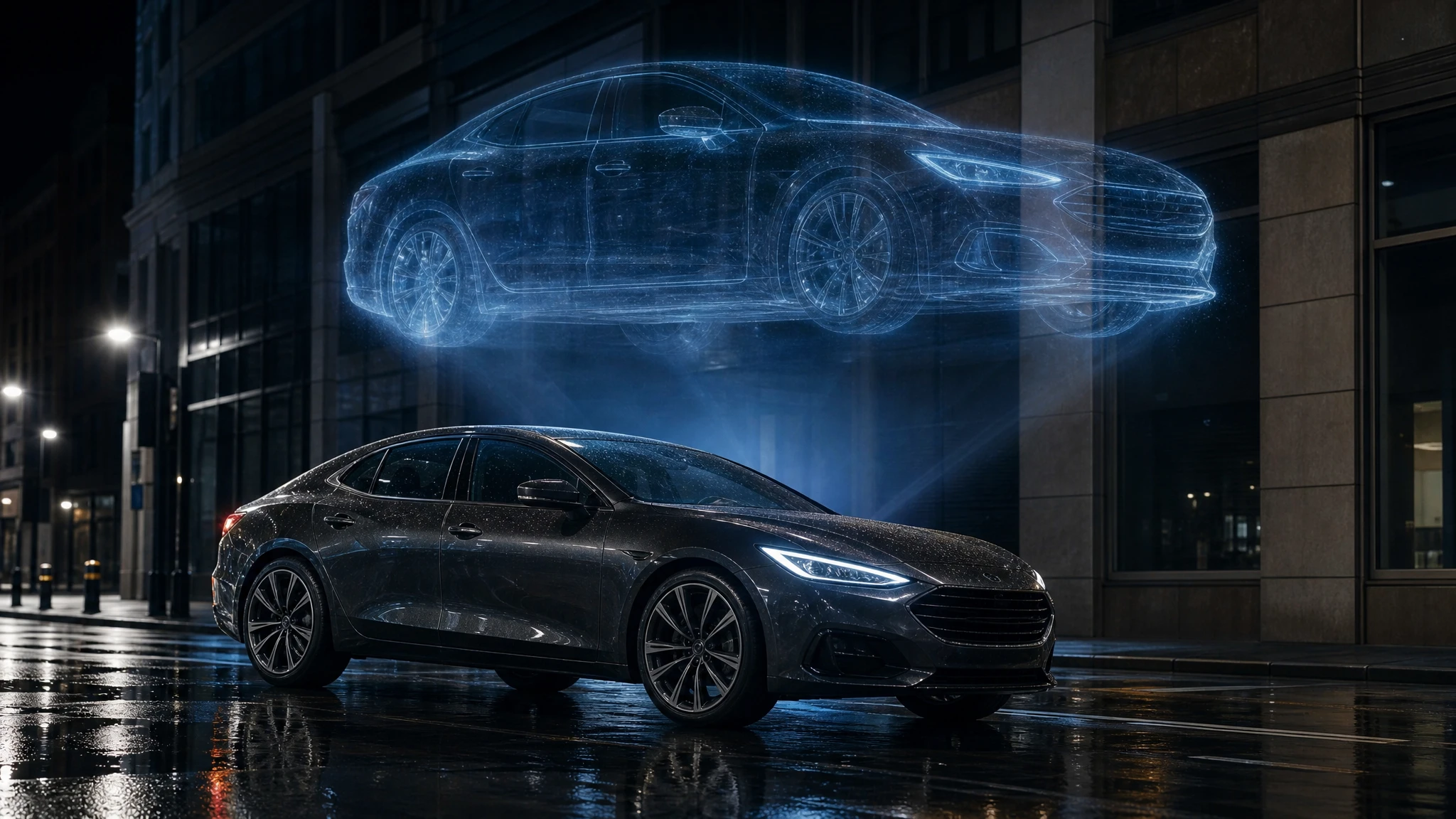
The hardest part of a flying car edit is not making the car fly. It is keeping the car recognisable while everything around it changes. A generic image generator will happily invent a new vehicle. A good edit keeps the one you photographed.
This workflow is for dealers, creators and designers who already have a car photo and want a believable hover shot without a 3D render.
Sign in before uploading a photo. You can prepare your prompt and settings first.
This clip: 30 credits — about 6 a month on Pro for $39.90, or 80 a year for $319.
Sign in to generate — your upload and settings stay put.
Most clips finish in a few minutes. If a render fails, its credits are returned automatically.
Start with the right photo
The source photo decides most of the result. You want:
- the whole car in frame, including the wheels and the roof;
- a sharp, evenly lit body;
- a clean three-quarter or side angle;
- no number plate, or a plate you are willing to remove;
- enough space above the car for the hover;
- a background that is not the same colour as the car.
A phone photo is fine. A showroom photo is fine. A screenshot from a configurator is not: it is usually compressed, watermarked and missing the real reflections the model needs.
If the car is in direct sun, the roof may be blown out. If it is in deep shade, the model may invent texture. A lightly overcast day is the easiest source.
Write the invariants first
An edit prompt is a contract. Start with what must not change:
Keep the exact car, body colour, camera angle, reflections and proportions. Do not change the badges or the shape of the glass.
Then describe what should change:
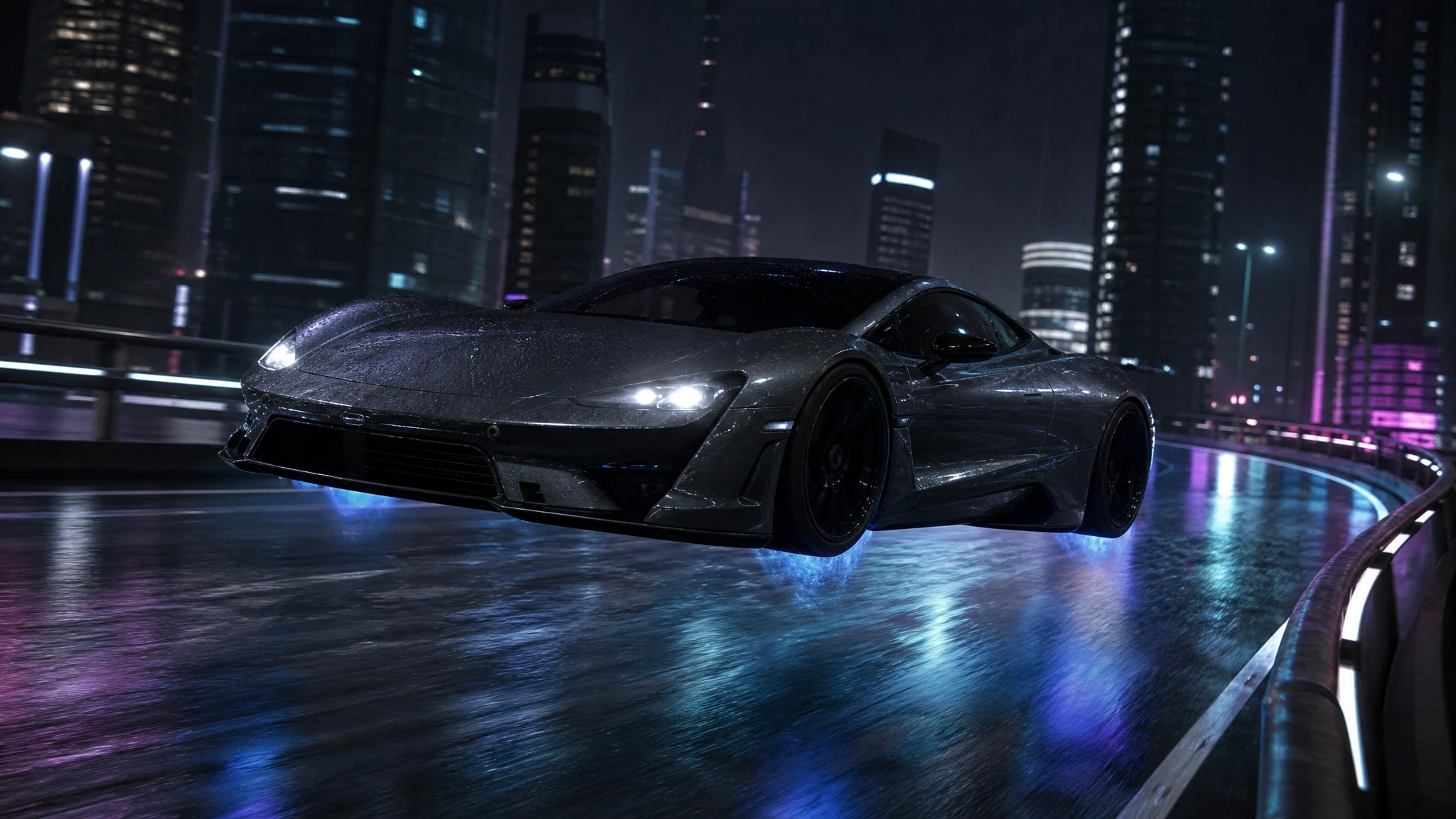
Add retracted landing gear, a low hover height and a faint blue thruster glow. Replace the background with a neon-lit elevated highway at night. Keep the light direction consistent with the original photo.
The order matters. If you describe the new scene first, the model may treat the car as part of the scene and redesign it. If you lock the car first, the edit has a better chance of preserving identity.
The three edits that work
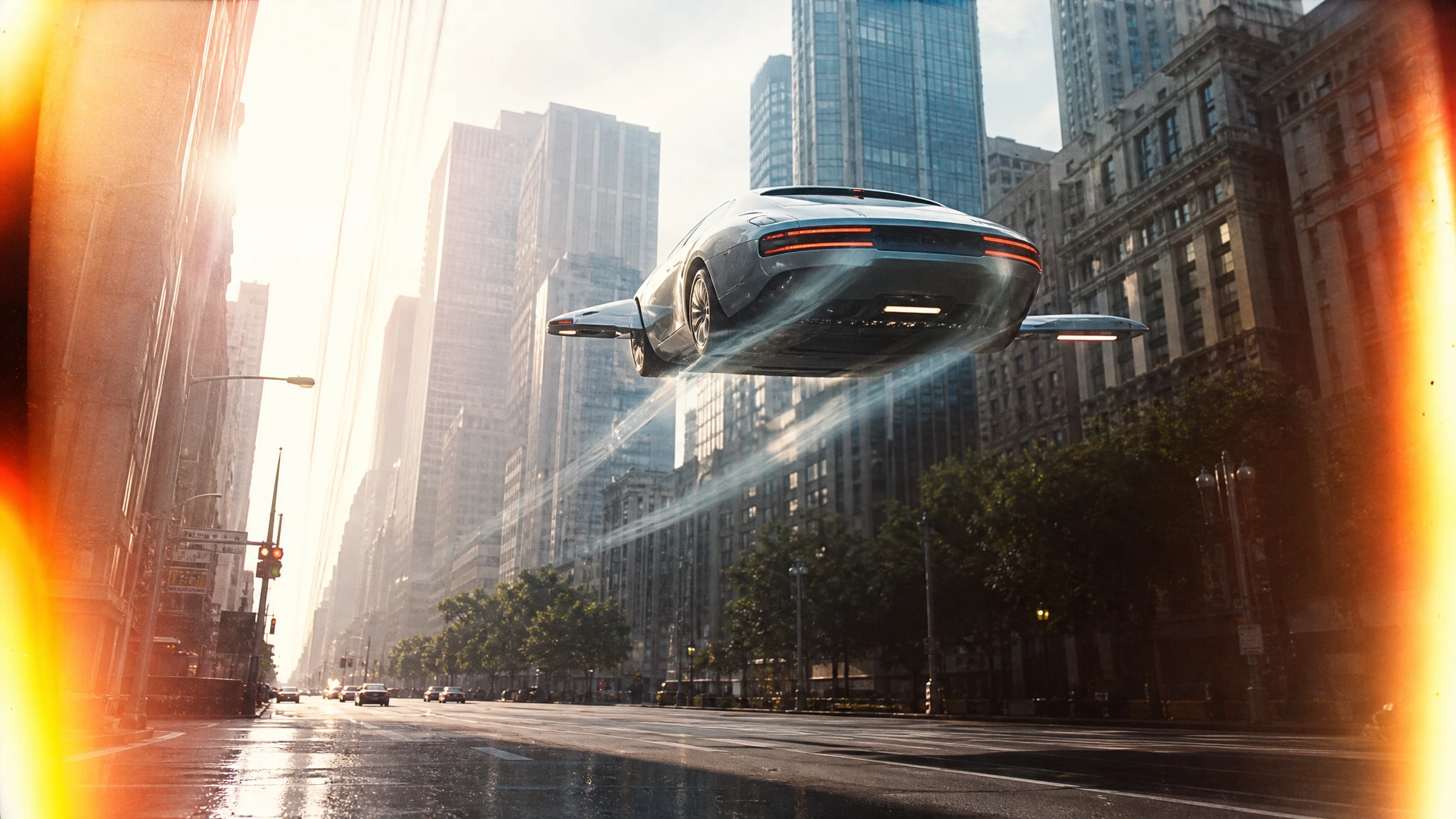
The lift. Keep the car and the street. Add a low hover, a soft shadow and a subtle glow under the chassis. Remove the wheels’ contact with the road. This is the most believable edit because the car stays in its original light.
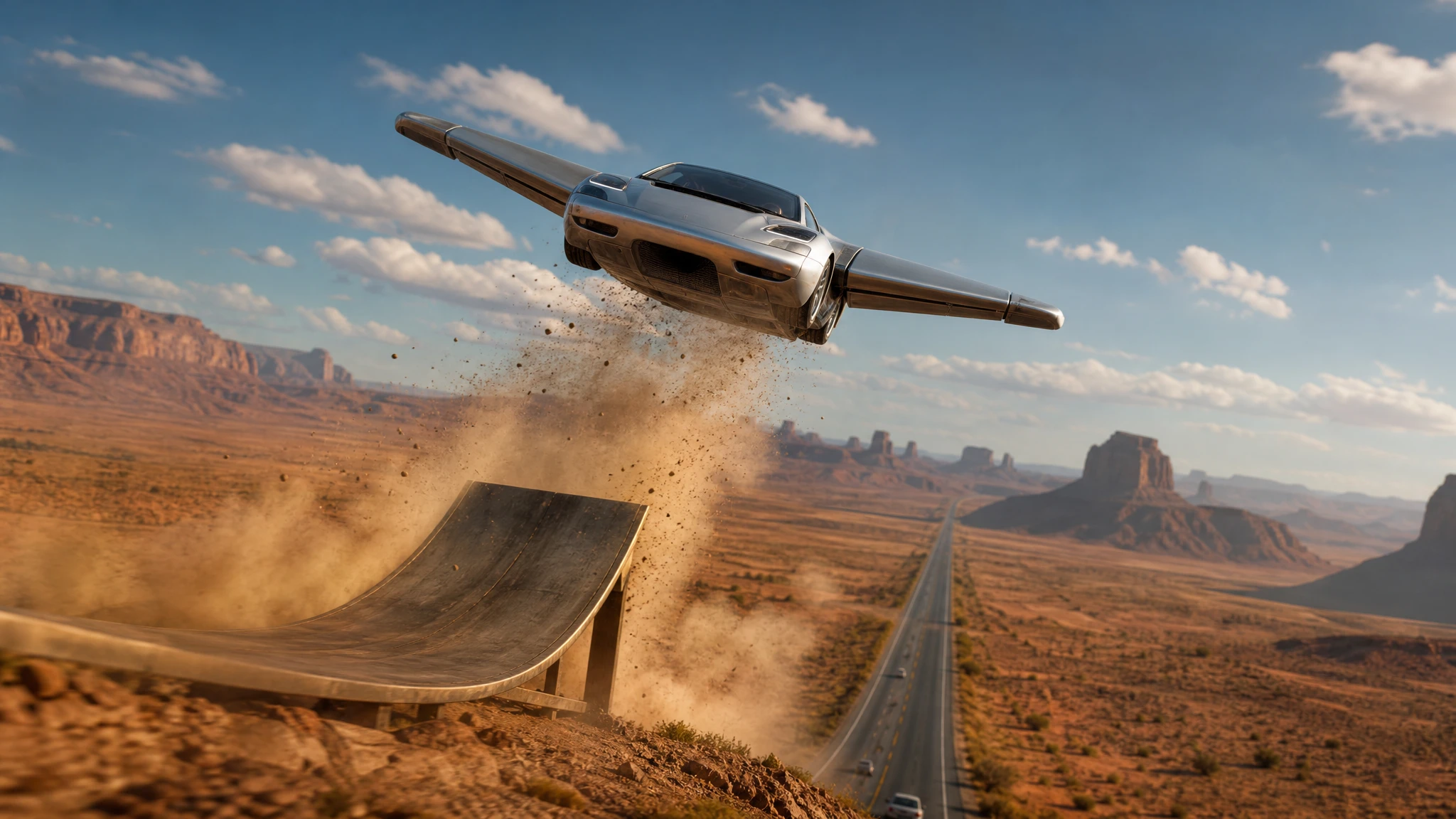
The setting swap. Keep the car and the light direction. Replace the background with a rooftop, an elevated highway or a desert road. The model has to match the reflections and the shadow, so give it a light direction: “same sunlight from camera left”.
The weather pass. Keep the composition. Add rain, wet reflections and a cool grade. This is the safest edit for a client preview because the car’s shape and position do not change.
Do one of these at a time. A new car, a new angle, a new background and a new weather system in one prompt is four jobs; the model will do one of them well and the rest approximately.
What will drift
Even a good edit will change some details. The usual suspects are:
- badges and small trim;
- number plates and stickers;
- the exact shape of a wheel;
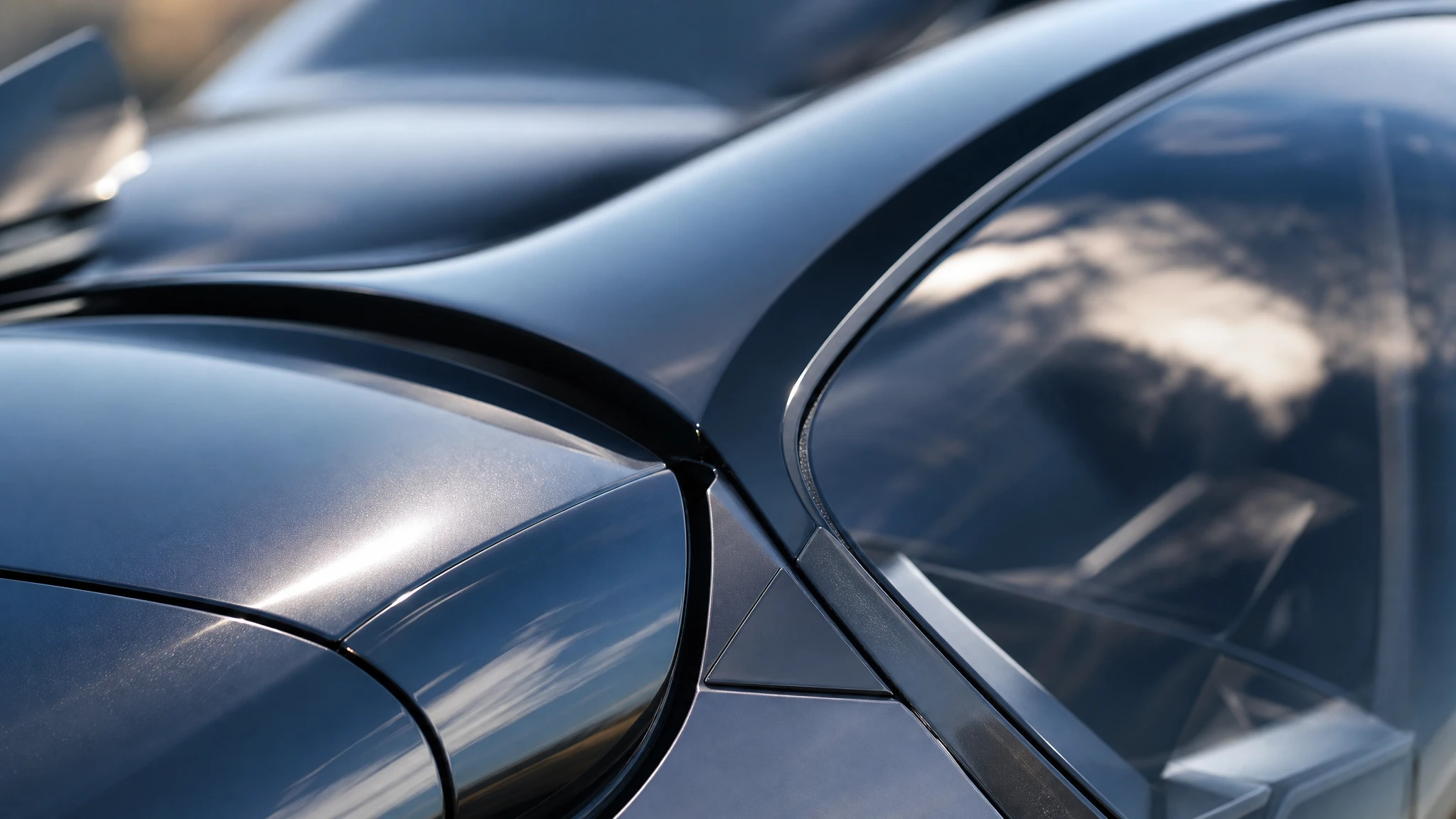
- reflections on glass;
- thin antennas and mirrors;
- the number of spokes.
Inspect the result at 100%. If the car is going into a catalogue or a paid ad, either remove the sensitive details before uploading or use the image as a concept preview rather than a representation of the actual vehicle.
A dealer-safe workflow
- Photograph the car on a clean forecourt or in the showroom.
- Remove or cover the plate.
- Upload the photo to the flying car photo editor.
- Run a low-cost draft with the “keep the car, change the scene” prompt.
- Check the silhouette, the wheels and the glass.
- If it holds, generate the final and download it.
- Label the result as an AI visualization. Keep the real listing photos separate.
That last step is not optional. A hover shot is a campaign image, not a photograph of a vehicle for sale. Presenting it as real inventory is misleading and can create legal problems.
Editing for a thumbnail versus a listing
A thumbnail needs a strong silhouette and negative space for a headline. A listing image needs an accurate car and a clean background. Those are different compositions.
For a thumbnail, crop tight, increase contrast and leave one side empty. For a listing, keep the whole car in frame, remove the background and place it on a neutral sweep. The background remover is the faster route for the listing; the thumbnail maker is the faster route for the cover.
When to generate instead of edit
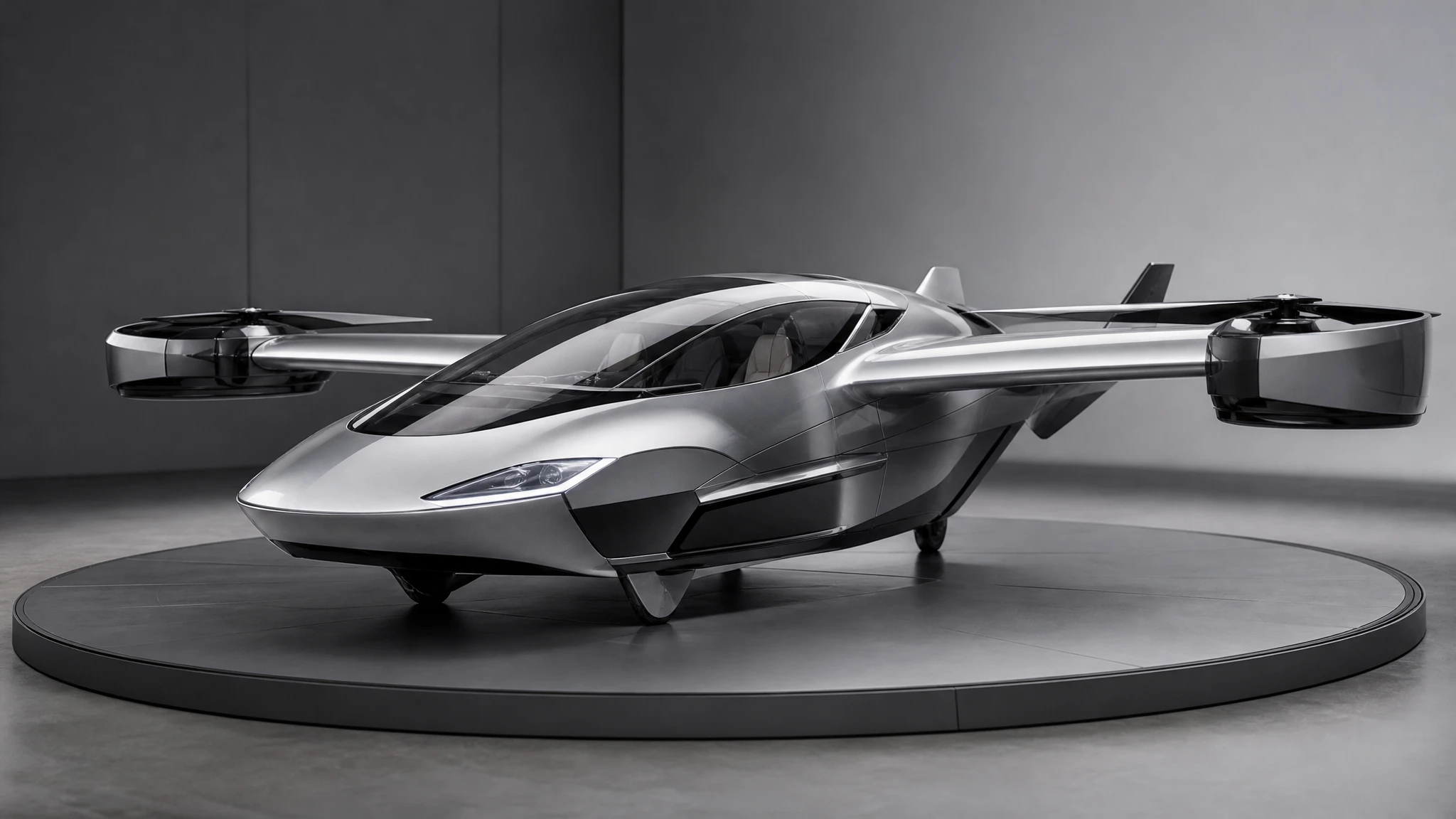
If the car is wrong, the angle is wrong and the background is wrong, start over with the image generator. Editing one photo into three different jobs produces a compromise. A generated concept gives you a clean subject to edit later.
The rule is simple: edit for identity, generate for invention. Use the photo editor when the car must be yours. Use text-to-image when the car can be anything.
Common mistakes
Asking for a new car and a new scene at once. The model will choose one to preserve and one to reinvent. Split the job.
Using a low-resolution photo. The model has less information to preserve. Use the largest original you have.
Ignoring the shadow. A hover without a shadow looks pasted. Ask for a soft shadow on the ground and a glow under the chassis.
Forgetting the light direction. If the original light comes from the left, the new scene should too. Say it explicitly.
Publishing without disclosure. Label synthetic media. It protects the audience and the brand.
Frequently asked questions
Will the edit keep my exact car? It preserves the main body, colour and angle far better than text-to-image, but small details can drift. Inspect before publishing.
Can I edit two photos at once? Yes. A car photo plus a background reference is a useful pair. Say which image supplies the vehicle.
Does it work on phone photos? Yes, if the car is sharp and the file is under 10MB.
How much does an edit cost? One edit costs 2 credits. A $9.90 single pack covers 15 edits.
Can I animate the result? Yes. Download the edited still and open the image-to-video tool.