 Flying Car AI Video Team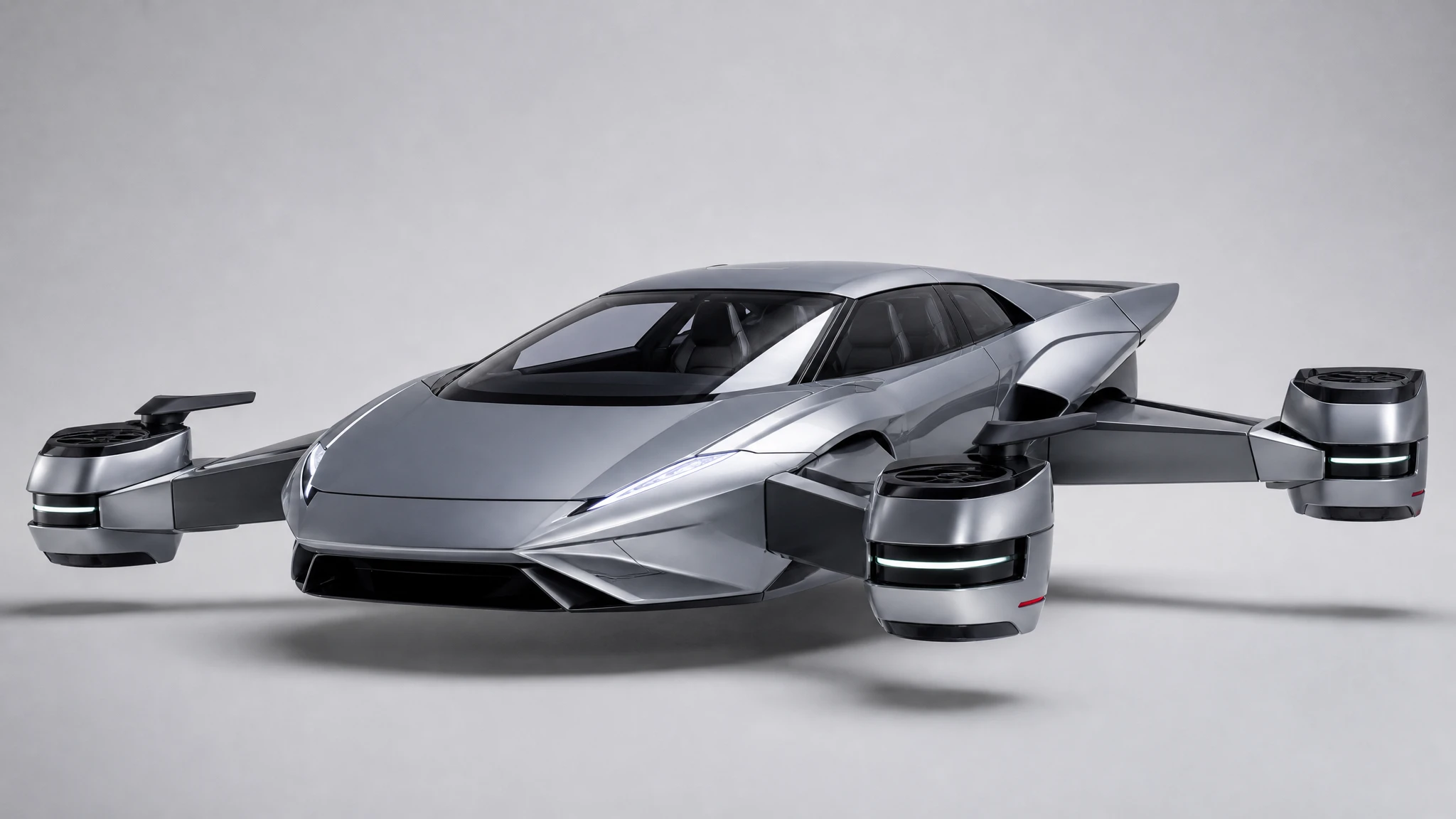
A car cutout looks simple until you inspect the mirrors. A transparent PNG is only useful if the edges survive: the glass, the antennas, the wheel arches and the shadow. This guide is a practical cutout workflow for listings, decks, thumbnails and composites.
Sign in before uploading a photo. You can prepare your prompt and settings first.
This clip: 30 credits — about 6 a month on Pro for $39.90, or 80 a year for $319.
Sign in to generate — your upload and settings stay put.
Most clips finish in a few minutes. If a render fails, its credits are returned automatically.
Why a transparent cutout matters
A rectangular photo carries its background into every layout. A transparent cutout does not. You can place the car on a brand colour, a studio sweep, a generated city or a video frame without fighting the original scene.
The cutout is also a reusable master. Every new composite should start from it, not from a flattened export.
Shoot for the cutout
You do not need a perfect studio, but contrast helps. Park the car so its outline is not the same colour as the wall behind it. Avoid direct sun that blows out the roof. Keep the whole vehicle in frame with a little space around it.
If you are shooting a series, use the same angle and distance for every car. Consistent cutouts make a listing grid look intentional.
What the tool does
The flying car background remover returns a transparent PNG. One cutout costs 2 credits. The prompt asks the model to keep the body, glass, wheels and reflections intact while removing the scene.
The hard cases are:
- mirror edges;
- thin antennas;
- glass with a strong reflection;
- open wheel arches;
- a shadow that touches the car;
- a background with the same colour as the body.
Check the result at 100%. A halo that is invisible on a white page can be obvious on a dark one.
Clean up the cutout
If the edge is close but not perfect, open the PNG in an editor and:
- remove any leftover background islands;
- refine the mask around the mirrors and antennas;
- add a subtle inner shadow if the car looks flat;
- keep the original cutout as a master.
Do not sharpen the cutout before compositing. Sharpen after the final scene is assembled.
Composite a flying car scene
Once you have the cutout, you can:
- place it on a studio sweep for a listing;
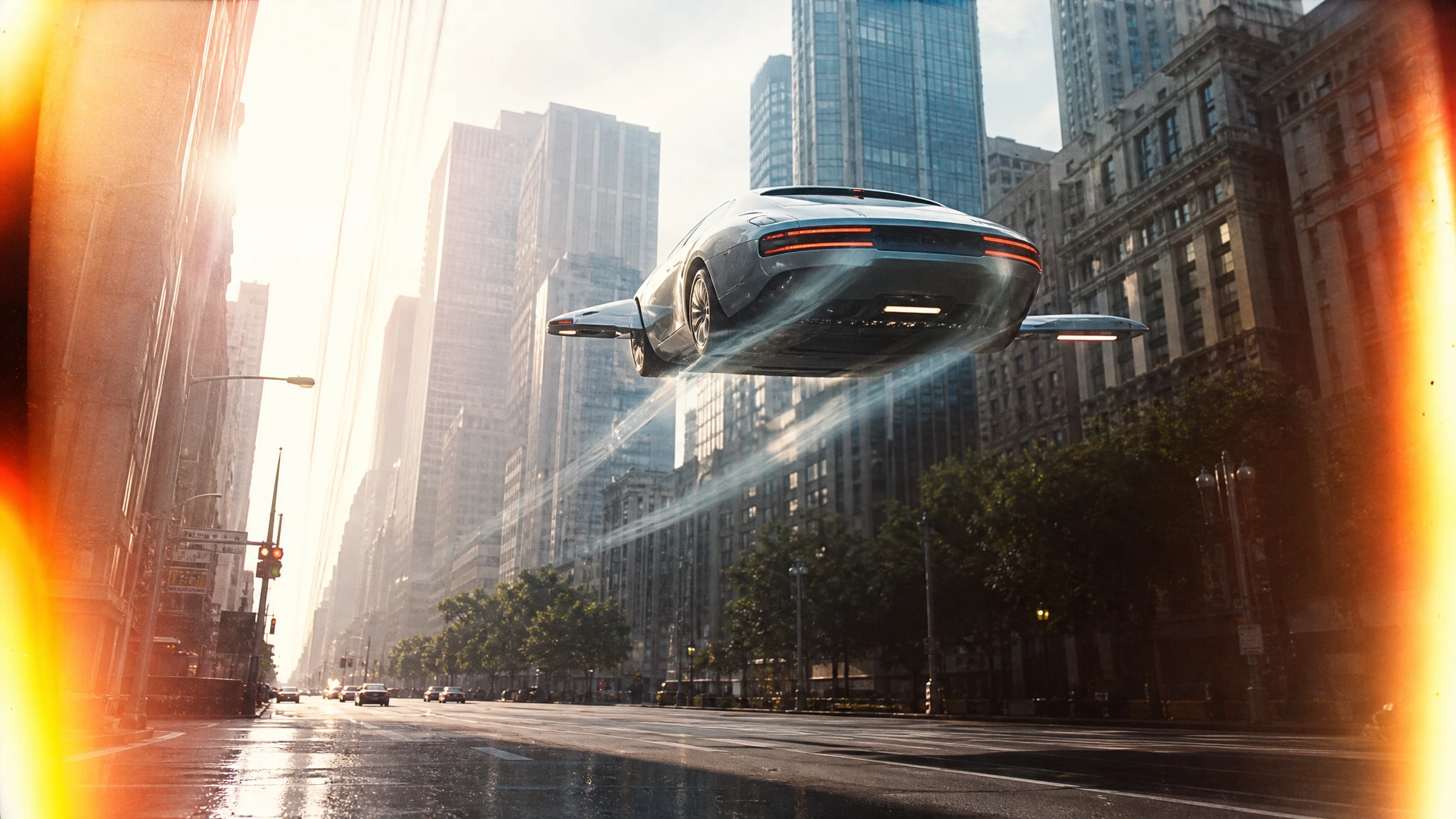
- add a generated city background for a campaign;
- put it on a rooftop or an elevated highway;
- use it as the first frame for a video.
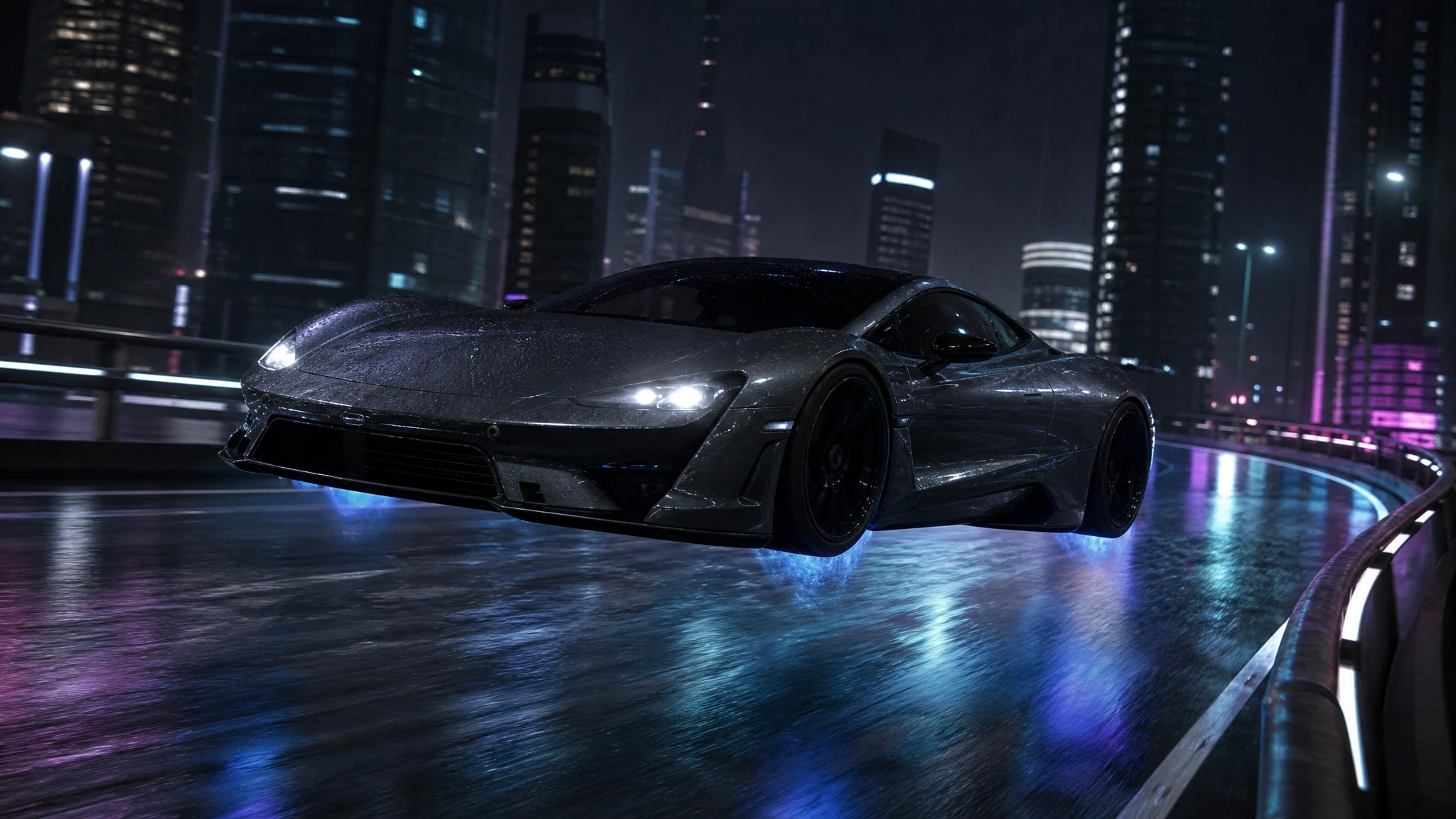
For a believable hover, add a soft shadow on the ground and a faint glow under the chassis. The shadow anchors the car; the glow explains the lift.
When to use the photo editor instead
If the car is already in a scene you like and you only need to change the background, the photo editor can do the whole edit in one step. The background remover is better when you need a reusable transparent asset.
Use the remover for listings and composites. Use the editor for a single campaign image.
Export settings
- Format: PNG with alpha.
- Colour profile: sRGB for web.
- Resolution: keep the largest source you have.
- Naming: include the vehicle, angle and date, e.g.
silver-coupe-front-three-quarter-2026-10.png.
A clean naming system saves more time than a clever folder structure.
A worked example: a listing grid
A dealer has twelve cars and wants a consistent grid for the website. The photos were taken on the same forecourt, but the backgrounds vary: a wall, a hedge, a van, a bright sky.
The first step is not the cutout. It is a decision: what background will the grid use? A neutral light grey is safe and makes the cars comparable. A brand colour is stronger but can cast a tint on the paint.
Photograph or select the cleanest three-quarter angle for each car. Remove the plates. Upload each photo to the background remover and download the transparent PNG.
Place each cutout on the same canvas size with the same margin. Do not scale one car to fill the frame and another to 70%; the grid will look uneven. Use the wheelbase or the overall length as the scale reference.
Add a soft contact shadow under each car. A cutout without a shadow looks like a sticker. A shadow that is too dark looks like a hole. A soft ellipse at 15–20% opacity is enough.
Export the grid at a consistent aspect ratio. Keep the transparent masters in a separate folder so a future campaign can reuse them. The grid is the first deliverable, not the only one.
Finally, check the grid on a phone. If the cars are too small to compare, the grid is doing too much. Reduce the number of columns, not the quality of the cutouts.
Common mistakes
Cutting a low-resolution photo. The edges will be soft. Use the original.
Leaving the ground shadow attached. Decide whether the shadow belongs to the car or the scene.
Compositing on a white background only. Check the cutout on dark and mid-grey too.
Upscaling before compositing. Upscale after the final scene is assembled.
Forgetting the disclosure. A composite is an AI visualization; label it when it could be mistaken for a real photograph.
Frequently asked questions
Does the tool keep the car’s shadow? The prompt asks for a clean cutout, so the ground shadow is usually removed. Add a new one in your editor.
What format is the result? A transparent PNG.
Does it work on glass and mirrors? It can, but reflective edges are the hardest part. Inspect at 100%.
Can I remove the background from a generated image? Yes. Use the original file, not a screenshot.
How much does a cutout cost? 2 credits. A $9.90 single pack covers 15 cutouts.
Open the flying car background remover and upload the cleanest photo you have.